Configuration
Configuration
Connect your GitHub repositories and tell the AI about your product and codebase.
Where to find the settings
GitHub integration
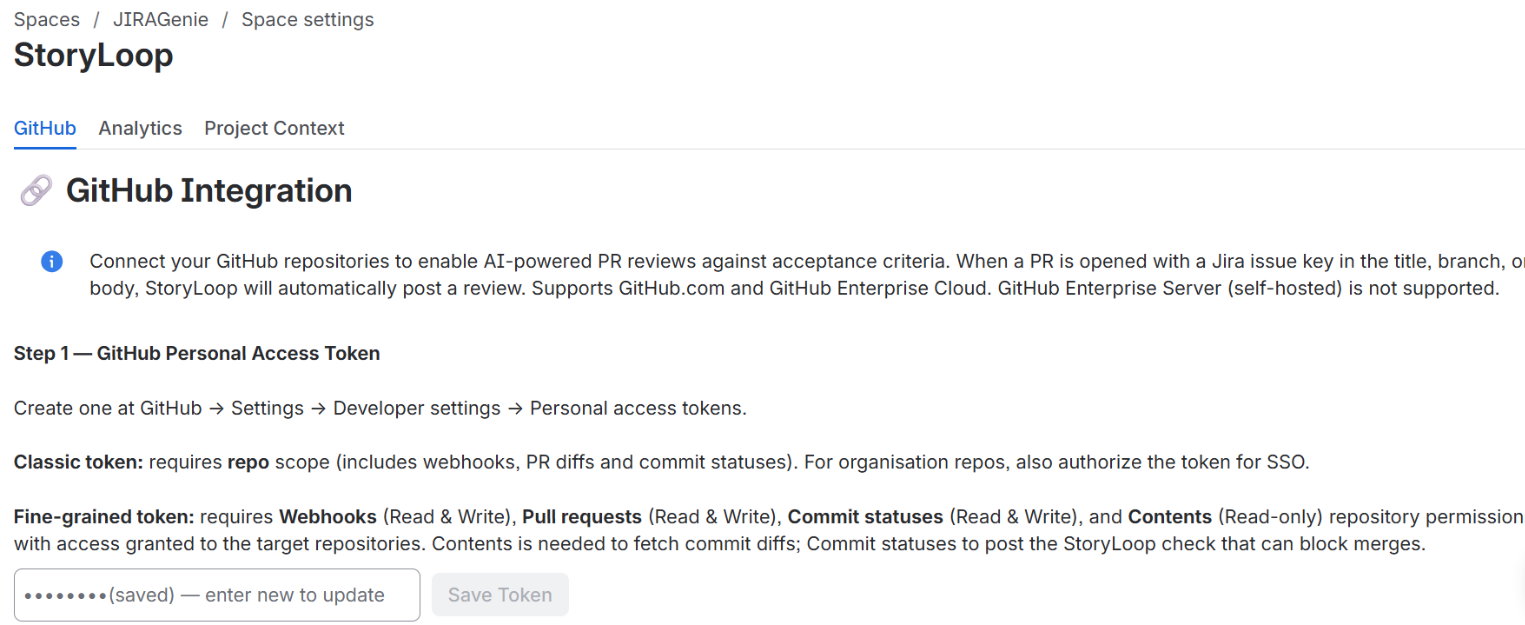
StoryLoop reviews pull requests in the repositories you connect here. Supported: GitHub.com and GitHub Enterprise Cloud. GitHub Enterprise Server (self-hosted) is not supported.
Step 1: Add a personal access token
Create a token in GitHub under Settings → Developer settings → Personal access tokens, paste it into the GitHub tab and click Save Token. StoryLoop checks the token and tells you if a permission is missing.
Fine-grained token Recommended
Grant access to the repositories you want reviewed, with these repository permissions:
- WebhooksRead & Write
- Pull requestsRead & Write
- Commit statusesRead & Write
- ContentsRead-only
Classic token
Requires the repo scope, which covers webhooks, pull request diffs and commit statuses. For organisation repositories, also authorise the token for SSO.
Step 2: Connect repositories
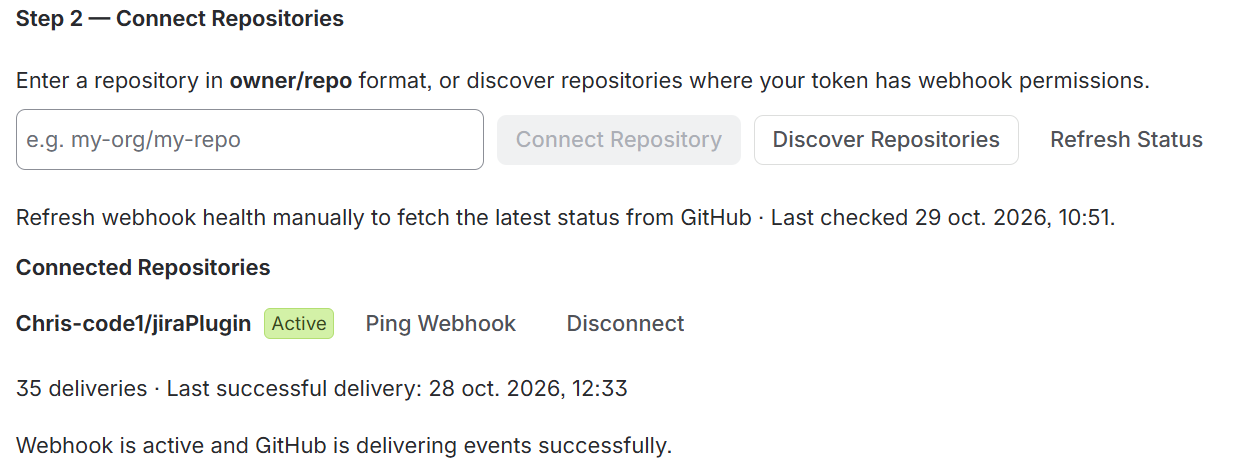
Connect repositories one by one or in bulk:
- Enter a repository as
owner/repoand click Connect Repository, or - click Discover Repositories, select several of the repositories your token can access, and connect them in one go.
StoryLoop creates a webhook on each connected repository. The Connected Repositories list shows each webhook's health. Use Ping Webhook to test it and Disconnect to remove it.
Project Context
Use this tab to tell the AI about your product and codebase. Type or paste plain text (Markdown headings and lists work well), then click Save.

StoryLoop uses it in two places:
Generating acceptance criteria
Domain terms, acronyms, personas and how your team writes criteria (for example, Given/When/Then). Criteria then use your team's language instead of generic wording.
Reviewing pull requests
Tech stack, where code lives and team conventions. This helps the review find the code for each criterion and avoid flagging things your team does on purpose.
Useful things to include
- What your product does and who uses it
- Domain-specific terminology and acronyms used by your team
- Tech stack and where code lives, for example "API handlers live in
api/src/routes" - Team conventions, for example "new UI ships behind a feature flag"
- How your team writes acceptance criteria, for example Given/When/Then
Keep it short and specific