Using StoryLoop
Using StoryLoop
Define acceptance criteria, have every pull request reviewed against them, and see them ticked off in Jira when the code is merged.
Acceptance criteria
Generate criteria from the issue description, or write them yourself.
- 1
Open an issue. Make sure the description explains what should be built.
- 2
In the Acceptance Criteria panel, click Generate.
- 3
Review the proposed criteria. Click Edit to reword, add or remove criteria, then Accept & Save.
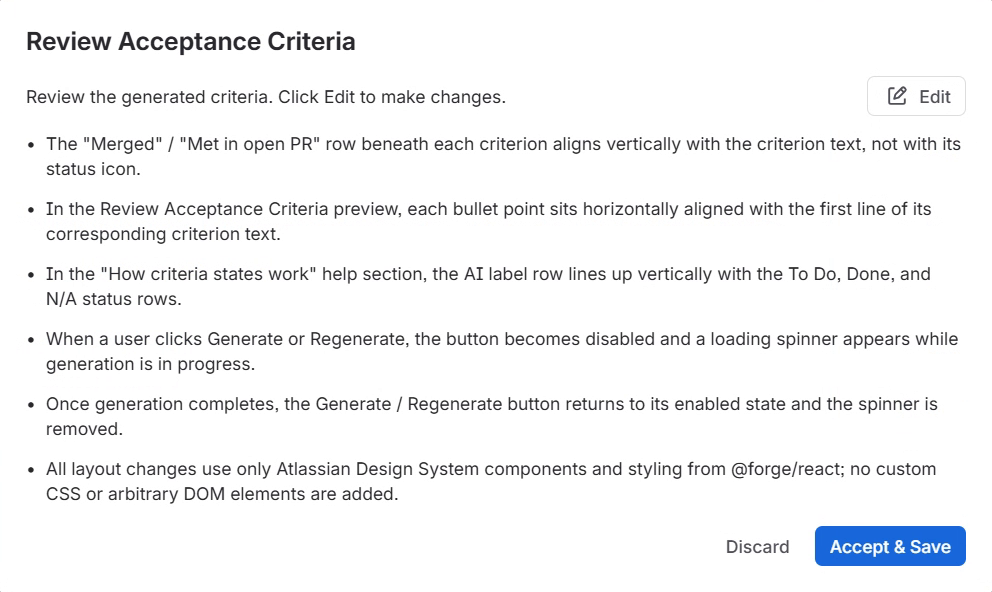
Prefer to write them yourself? Click Add manually in the empty panel, type a criterion, click Add criterion for each further one, then Accept & Save. Hand-written criteria are checked against pull requests just like generated ones.
Criterion states
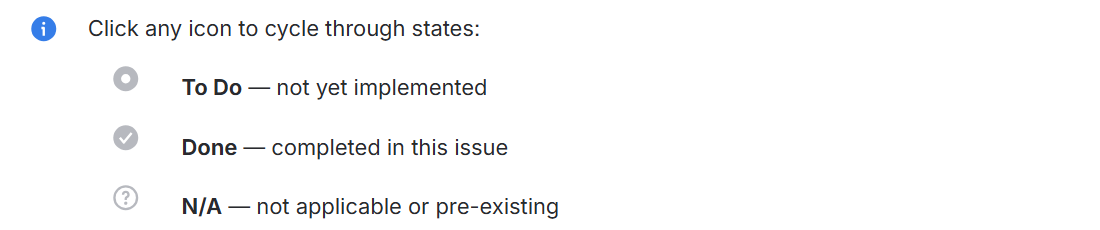
Each criterion is To Do, Done or N/A (not applicable, or already existed before this issue). Click a criterion's icon to cycle through them. The ? icon in the panel shows this legend.
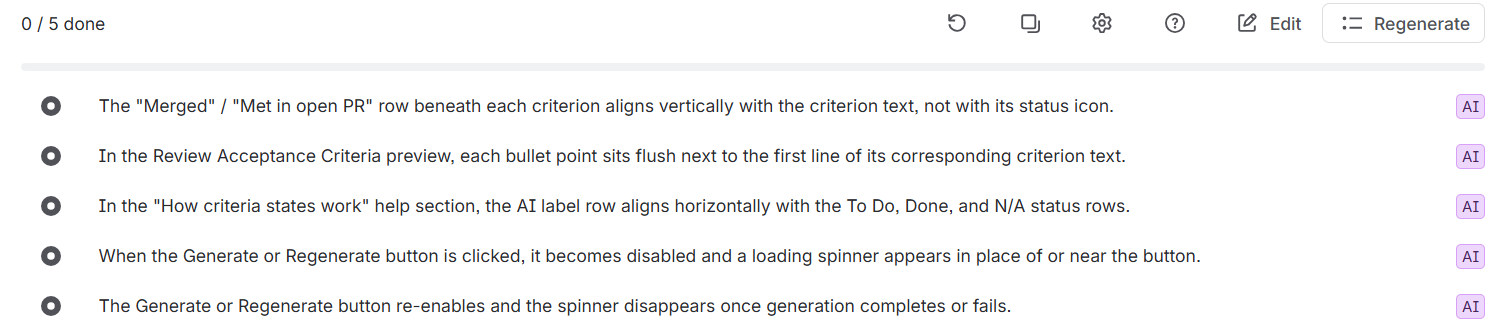
Criteria that StoryLoop generated or completed carry an AI label until someone reviews them. Click the criterion's icon once to confirm it: the label disappears, the status stays, and from then on StoryLoop treats the status as yours. Use Edit to change the criteria later, or Regenerate to start over from the current description.
Automatic PR reviews
StoryLoop reviews a pull request when it is opened, reopened, edited, marked ready for review, or receives new commits, as long as its title, branch name or description contains a Jira issue key. Draft pull requests are skipped until they are marked ready for review.
- 1
StoryLoop reads the issue's description and acceptance criteria.
- 2
It reviews the pull request's changes against them.
- 3
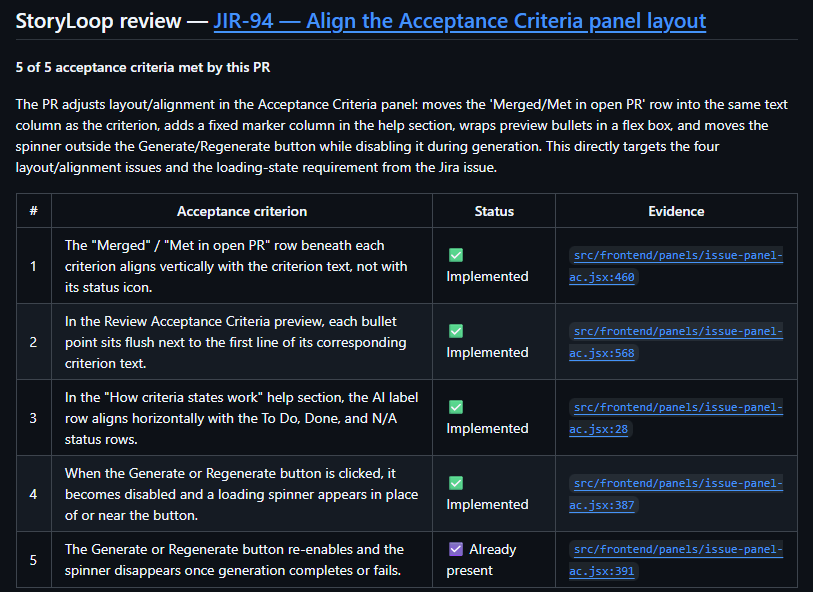
It posts the review as a comment on the pull request: how many criteria the PR meets, the status of each with links to the code, what is still to do, and any potential issues it spotted.
- 4
In Jira, each criterion the review finds fully met shows Met in open PR with a link to the pull request.
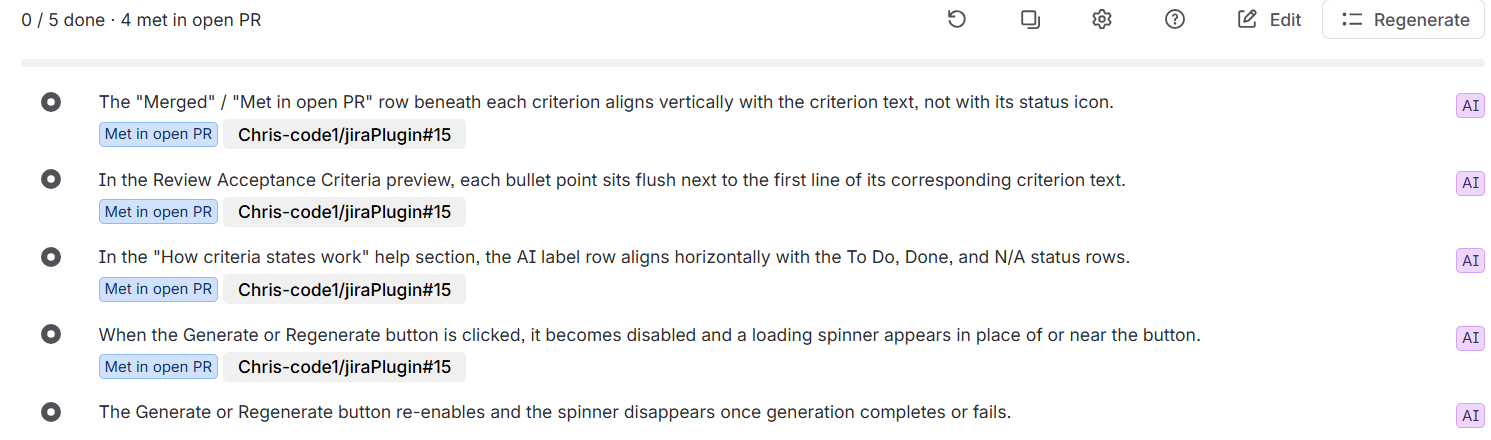
When the pull request is merged
Every criterion it met becomes Done, with the AI label. If the pull request is closed without merging, its "Met in open PR" links are removed. If a later push undoes the work for a criterion, the next review removes the link again.
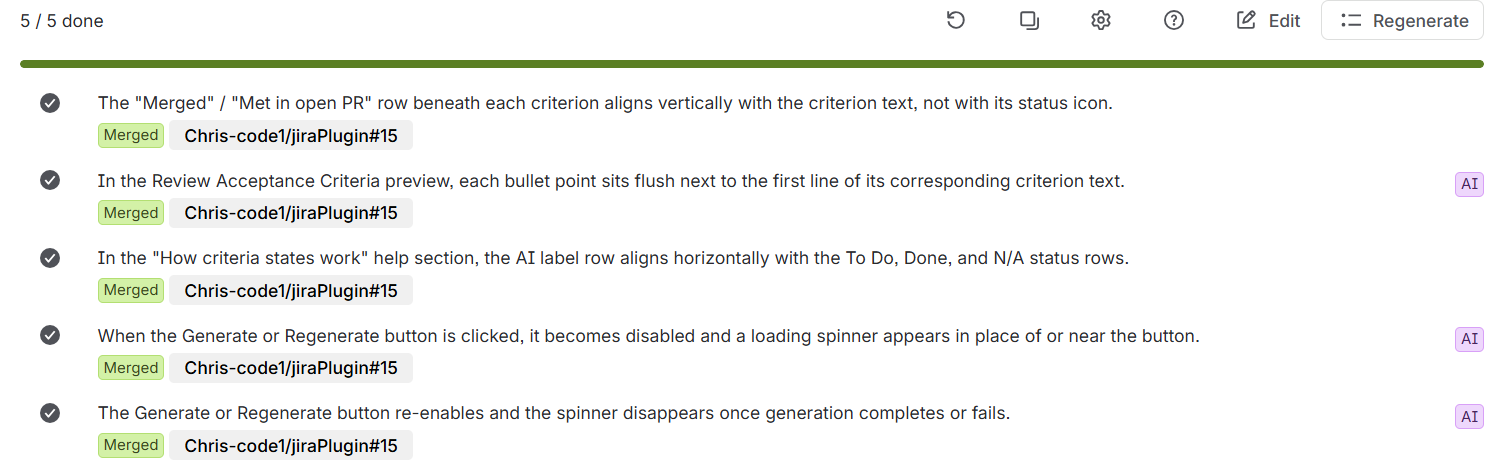
Criteria can be met by different pull requests, and the panel shows each one. StoryLoop never changes a status you set yourself, and never sets a criterion back to To Do.
Large pull requests
package-lock.json or minified bundles) don't count toward the limit. Split large changes into smaller PRs to get a review. Merge and workflow gates
Both gates are optional. Use them to make sure nothing is merged or closed before its acceptance criteria are met.
The StoryLoop check on pull requests
Every reviewed pull request gets a commit status named StoryLoop, shown with the other checks. Its description shows the count per issue, for example Acceptance criteria met: PROJ-123 4/5.
| Status | Meaning |
|---|---|
| Success | Every acceptance criterion of every linked issue is Done, N/A, or met by this pull request. |
| Failure | Some criteria are not met yet, a linked issue has no acceptance criteria, or no mentioned key matches a Jira issue. |
| Error | The pull request is too large to review, or the review failed. Push again to retry. |
| Pending | The review is running. |
Block merges until the criteria are met. In GitHub, open Settings → Branches (or Rules → Rulesets), add a rule for your main branch, enable Require status checks to pass, and add StoryLoop.
The check reflects the criteria at the time of the last review. If you change criteria in Jira (for example, mark one N/A), push a commit or edit the PR to re-check. Pull requests that don't mention a Jira key get no StoryLoop check, so making it required also enforces linking every pull request to an issue.
Blocking Jira transitions until criteria are done
StoryLoop adds a workflow validator, All acceptance criteria done (StoryLoop), that stops an issue from moving to a status (for example Done) while any of its criteria are still To Do. A Jira administrator sets it up:
- 1
Open the project's workflow in the workflow editor.
- 2
Select the transition into your Done status.
- 3
Add a validator and choose All acceptance criteria done (StoryLoop).
- 4
Save and publish the workflow.
- Criteria marked Done or N/A pass. Issues without StoryLoop acceptance criteria are never blocked.
- When it blocks a transition, Jira shows how many criteria are still To Do, and how many of those are met in an unmerged pull request.
- If StoryLoop can't check the criteria (for example during an outage), the transition is allowed, so your team is never stuck.
- Works in company-managed and team-managed projects.
Copy and analytics
Copy to clipboard
Click the copy icon in the Acceptance Criteria panel to copy the issue's key, title, description and criteria (with their status) as Markdown. Paste it into GitHub Copilot Chat or another AI coding assistant to give it the full requirements.
Analytics
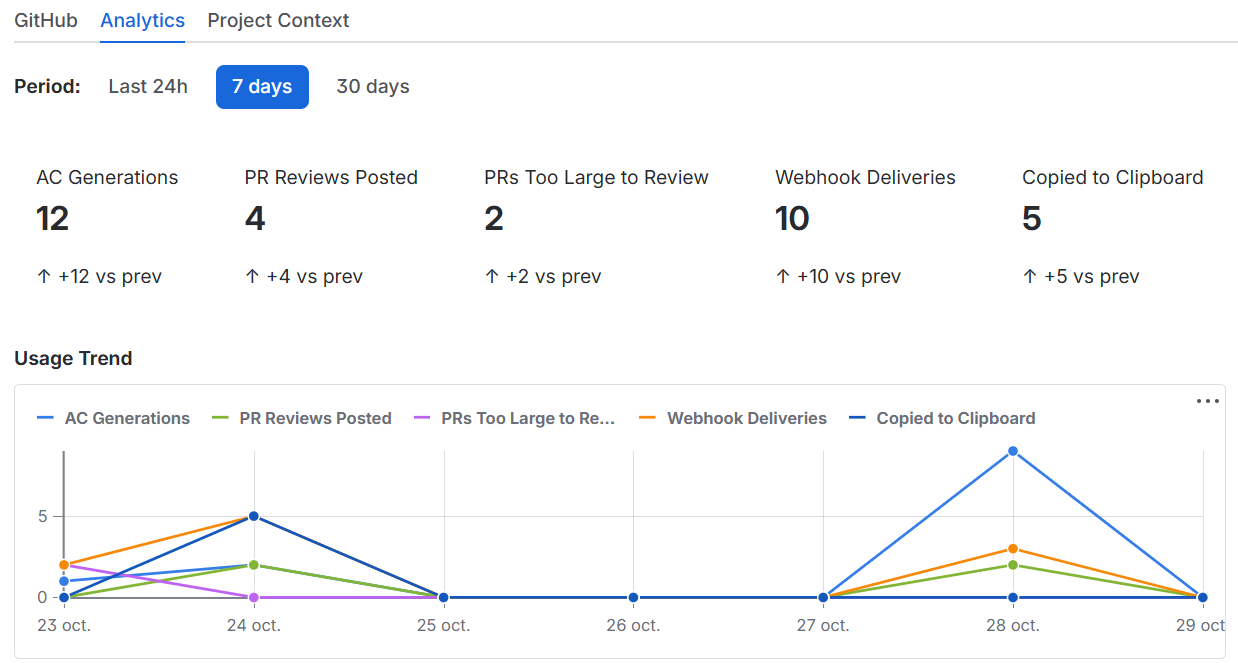
The Analytics tab shows usage over the last 24 hours, 7 days or 30 days: criteria generated, PR reviews posted, PRs too large to review, webhook deliveries and clipboard copies, plus webhook deliveries per repository.
Best practices
Write a clear description first
Criteria are only as good as the description they come from. If you use StoryCraft AI, write the story there, then generate criteria in StoryLoop.
Fill in Project Context
The more the AI knows about your product, the more specific its criteria and reviews will be.
Keep criteria about the code
Process steps such as deployment, sign-off or "tests are passing" belong in your Definition of Done. If you add one by hand, mark it N/A so it doesn't keep the StoryLoop check red.
Keep criteria testable
"The user sees an error message when the email is invalid" is easy to verify in code; "the form is user-friendly" is not.
Keep pull requests focused
Smaller pull requests get more precise reviews and stay within the review size limit.
Put the issue key in the branch name
For example feature/PROJ-123-login, so every pull request from that branch is linked automatically.