Configuration
Templates, context and glossary
Teach StoryCraft your team's format and your project's language. Everything here is set per project.
Where to find the settings
Team templates and examples
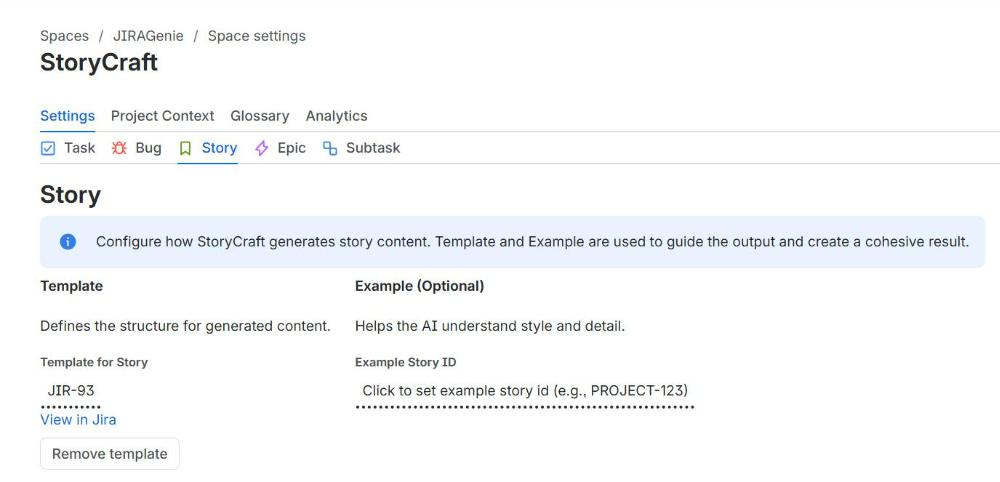
The Settings tab has one tab per issue type in your project. For each type you can set:
- Template: a Jira issue whose description is the structure StoryCraft follows, for example headings for the user story, acceptance criteria and out of scope.
- Example (optional): a well-written issue of that type. It shows the AI the style and level of detail your team expects; StoryCraft does not copy it.
Choose a ready-made template
When no template is set, click Choose & Create Template. StoryCraft shows the templates for that issue type, each with a filled-in example and the blank template. Create template creates a new issue in your project that holds the template; edit that issue at any time to adjust the structure. To use an issue you already have, click Use an existing issue instead and search for it in the Template field.
| Issue type | Templates |
|---|---|
| Story | Simple User Story, Test-Ready Story (Given / When / Then), Outcome-Driven Story, UI / Design Story, Technical / API Story |
| Epic | Product Epic (One-Pager), Technical Epic (Architecture) |
| Bug | Standard Bug Report, Technical / System Error, Production Incident |
| Task | Standard Task, Spike / Research, Tech Debt / Maintenance, Release Checklist |
| Subtask | Standard Subtask |
| Other types | General Work Item |
The first template of each type is marked Recommended. Issue types without their own templates get the General Work Item template. A subtask template needs a parent issue; if you leave the parent empty, StoryCraft uses your Story template issue.
Project Context
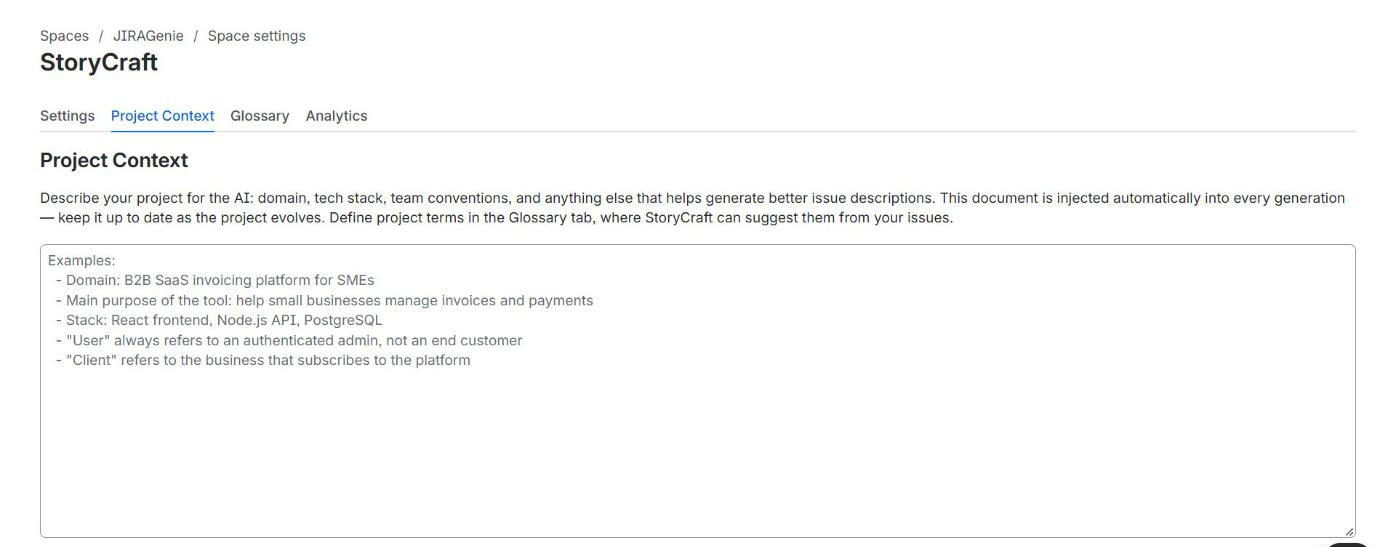
A short document about your project that StoryCraft includes in every AI request: applying templates, refinements, Grill Me, questions and epic breakdowns. Without it, the AI only knows the issue in front of it.
Domain and purpose
What the product does and for whom, for example a B2B invoicing platform for small businesses.
Tech stack
Frontend, backend, database and main integrations, so technical stories name the right parts.
Conventions
How your team writes stories, sizes work and phrases acceptance criteria.
Meaning of common words
What "user", "client" or "account" mean in your product, where it differs from everyday use.
Keep it short and specific
Glossary
Your project's terms, what they mean, and the words your team wants to avoid. Every StoryCraft feature uses the glossary, so generated text uses your words.
- 1
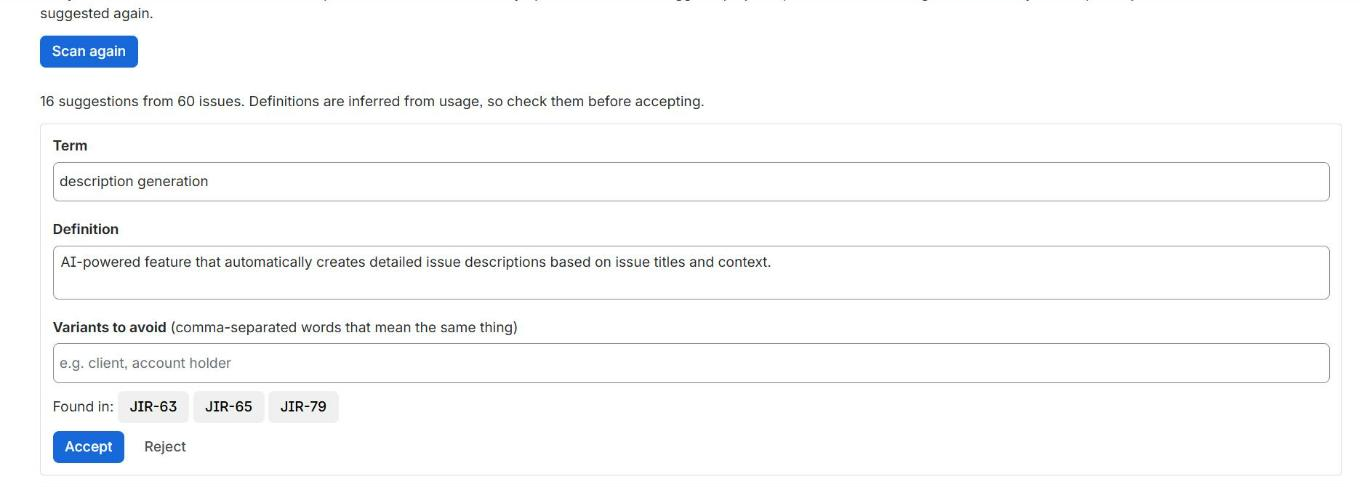
Click Scan issues. StoryCraft reads the summaries and descriptions of the 60 most recently updated issues in the project and suggests project-specific terms.
- 2
Check each suggestion: edit the Term and Definition, and list Variants to avoid (comma-separated words that mean the same thing).
- 3
Click Accept to add the term, or Reject. Rejected terms are not suggested again. Nothing is added until you accept it.
- 4
Use Add term to add terms yourself, and Edit or Remove to maintain the list.
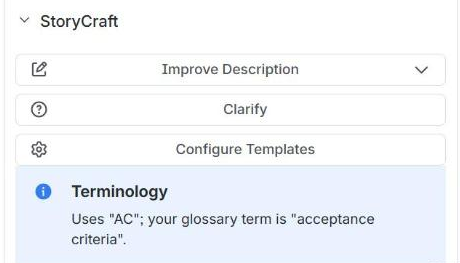
When an issue's summary or description uses a variant to avoid, the issue panel shows a Terminology hint with the glossary term.
Analytics
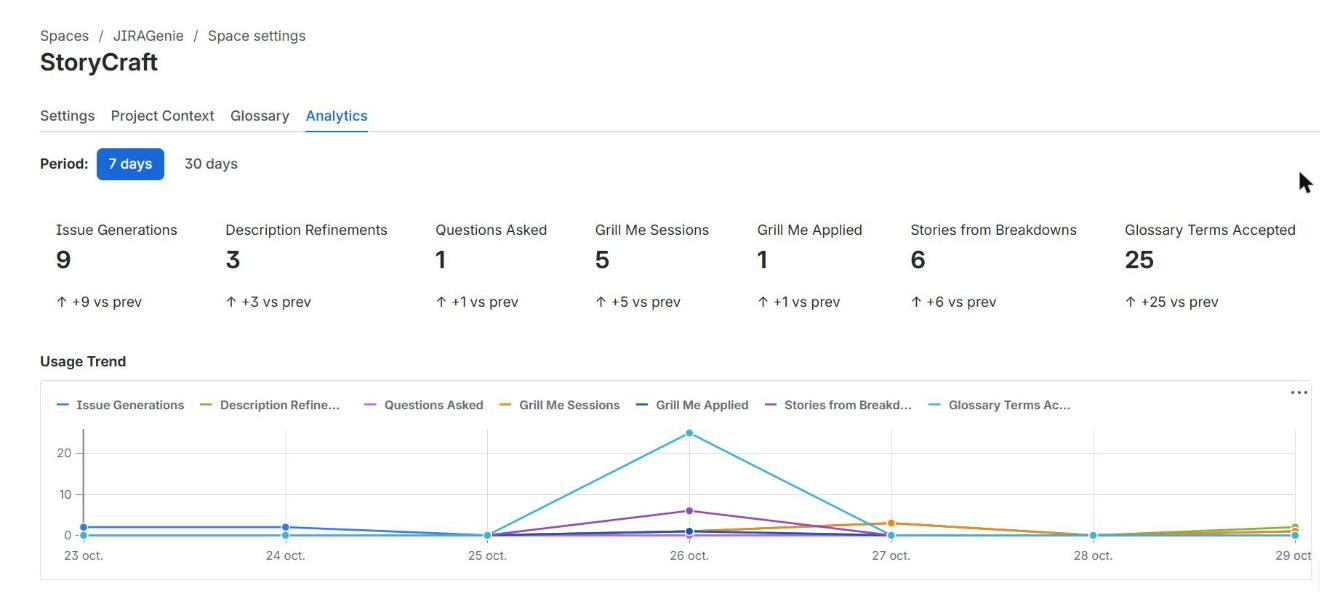
The Analytics tab shows how often StoryCraft is used over the last 7 days or 30 days, compared with the period before, and a daily usage trend. The counts cover all projects on your Jira site and contain no user or issue data.