User Guide
Using StoryCraft in Jira
Learn how to generate, refine, and audit your Jira issues directly from the issue sidebar.
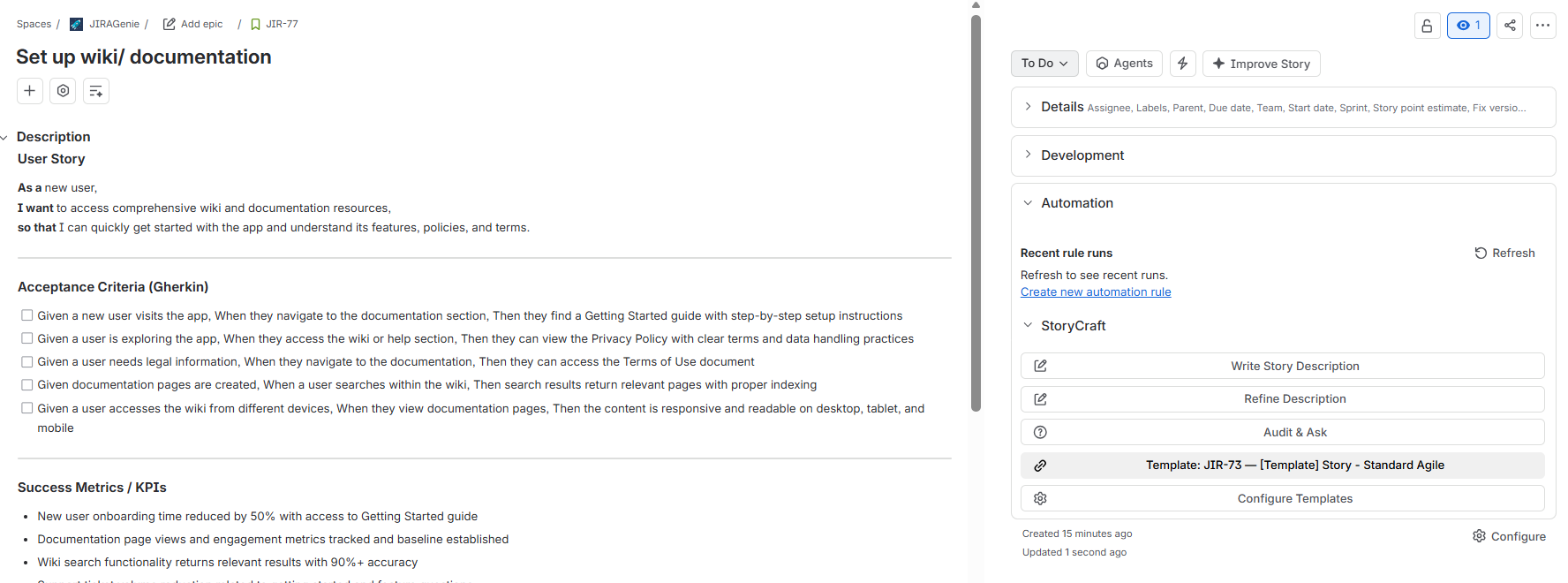
Issue Description Generation
A few rough notes or bullet points in the description field are all it takes: StoryCraft transforms unstructured thoughts into a perfectly formatted Jira issue with a single click (including Acceptance Criteria, User Story format, and more, based on your configured templates).
1. Add Rough Notes
Enter short bullet points, raw notes, or quick ideas directly in the Jira description field or prompt box.
2. Trigger Generation
Click "Generate Description" inside the StoryCraft sidebar panel.
3. Automatic Formatting
The AI applies your predefined templates, acceptance criteria structure, and project context automatically.
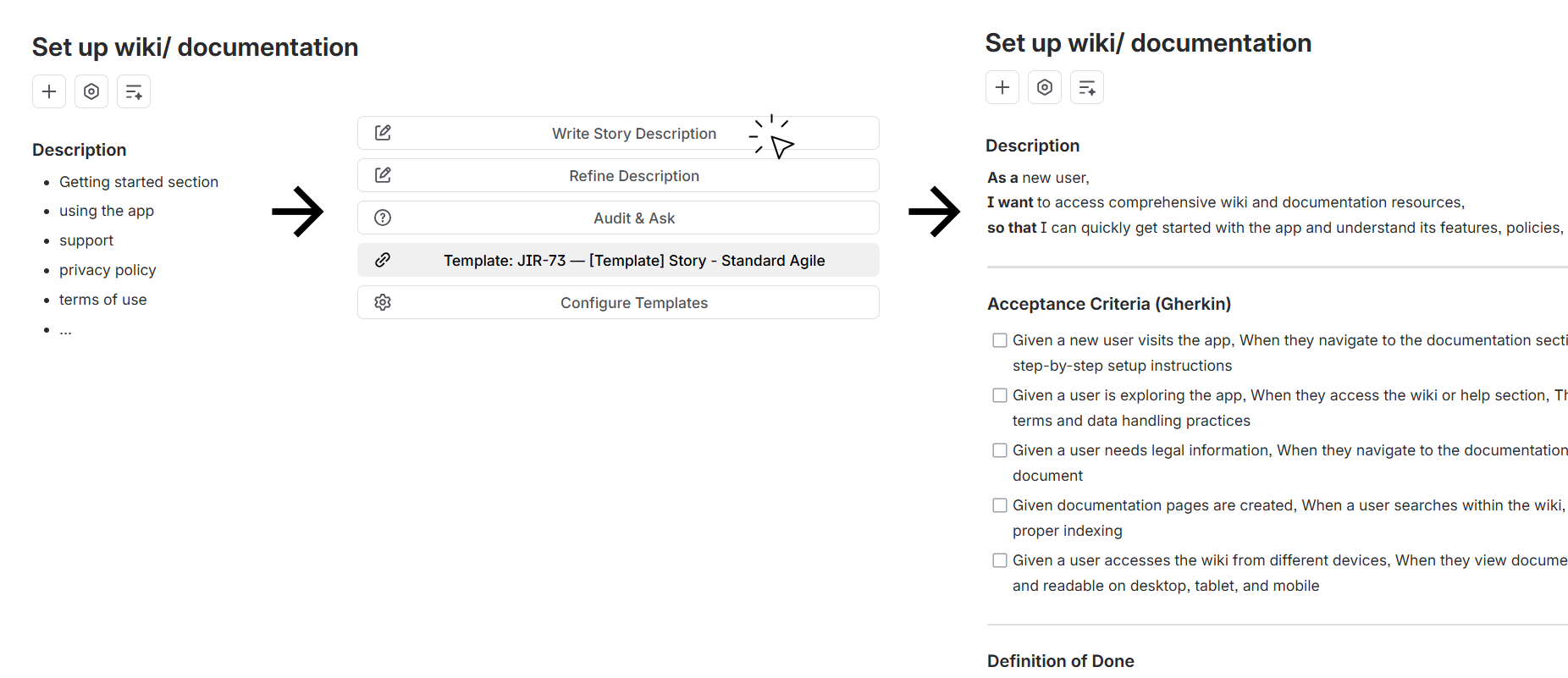
Before vs. After Generation
Iterate (Refine & Adjust Content)
Need to adjust existing text? Use the Refine Description feature to provide targeted instructions and fine-tune details without rewriting the content manually.
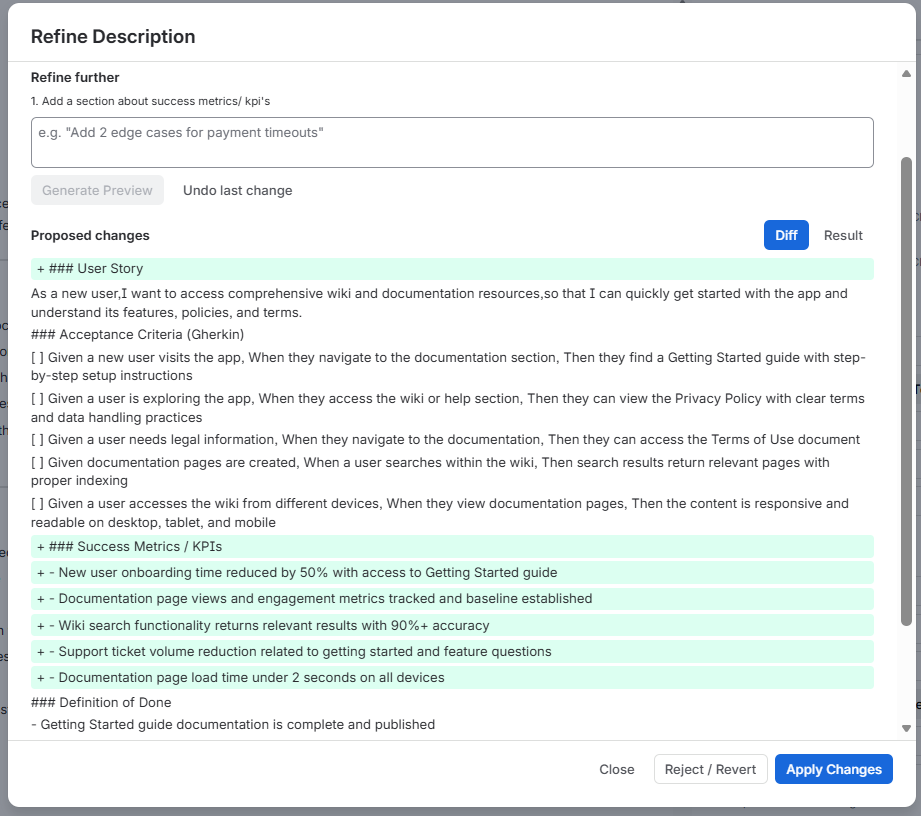
Refine Input Box in the Sidebar
Example Prompt
"Make it more precise"
Sharpens acceptance criteria and removes ambiguous phrasing.
Example Prompt
"Add edge cases"
Inserts a dedicated section covering error handling and boundary conditions.
Example Prompt
"Make tone technical"
Enriches the description with system terminology, API endpoints, and payload details.
Audit & Ask (Questioning & Brainstorming)
Leverage the AI as a quality reviewer and sparring partner right within the context of your Jira issue before it goes into the sprint.
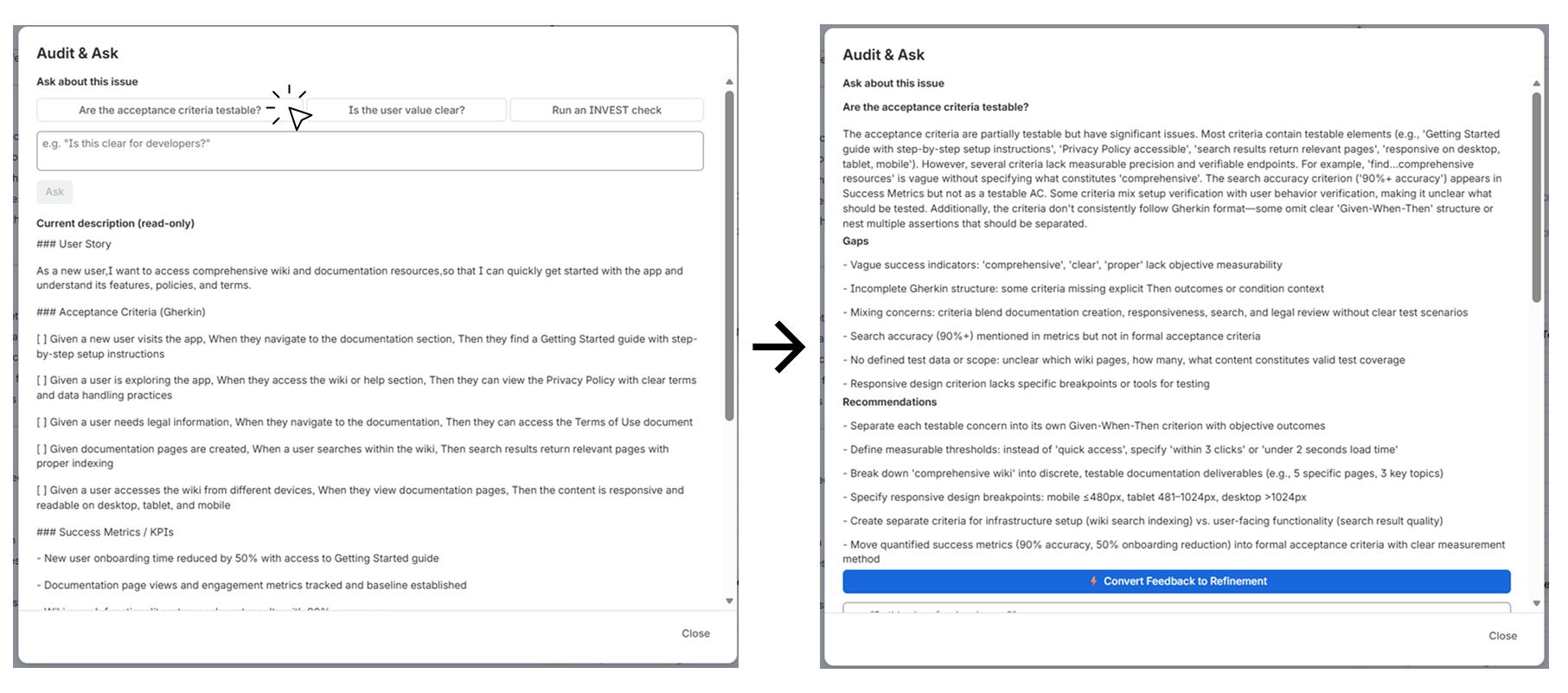
Audit & Ask Interface
Audit (Quality Check)
Have the AI evaluate your story for completeness, ambiguity, or missing acceptance criteria.
Ask (Sparring Partner)
Use the AI as a brainstorming partner to generate fresh ideas, evaluate technical solutions, or clarify doubts directly in ticket context.